2014/04/09

Why my computer is slow? 7 steps to make your Windows 7 faster.

Why my computer is slow?

Perhaps this is the question that millions of people around the globe are asking every day. This is popular topic within the Windows users and there is usually good reason why your computer is slow.

Personally now days i can tune almost any windows computer to work fast. Or if not fast, at least a lot faster. There is few tuning tips that i want to give. If you follow these steps, your computer will be faster.

I don't like when people are recommending reinstalling of whole Windows every time when computer is acting slowly. Its easy solution, like cheating. 90% of the time, its not even necessary.

Your computer has became slow, since its stuffed with running processes. Every time when you any kind of application running on background, its eating CPU cycles and consuming memory. Your hard drive has started defragmenting. Defragmenting means that bits that reside your physical hard drive surface has been scattered, and system needs to spend extra time looking for them.

To keep your computer running smoothly, you need to keep things simple. Here is few tips that i recommend doing, if you wish to kick some speed to your can. These examples are for Windows 7. This might be bit aggressive approach, so pay attention. Sometimes desperate time require desperate measures!

Performance tuning Windows 7


1. Make sure that your windows is up to date.

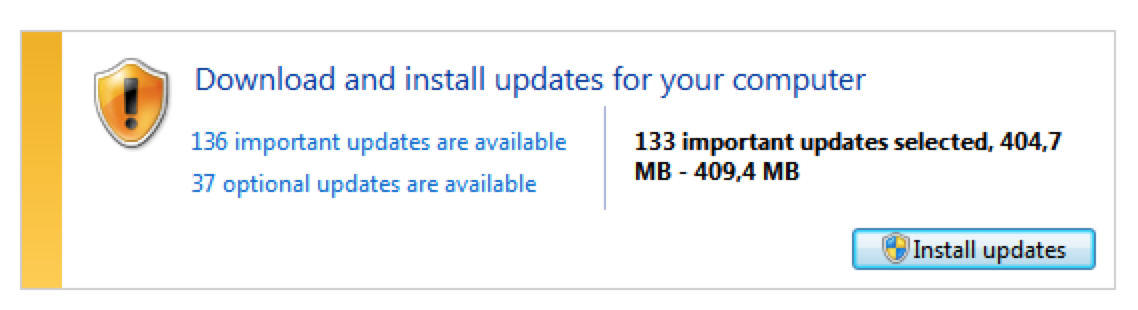
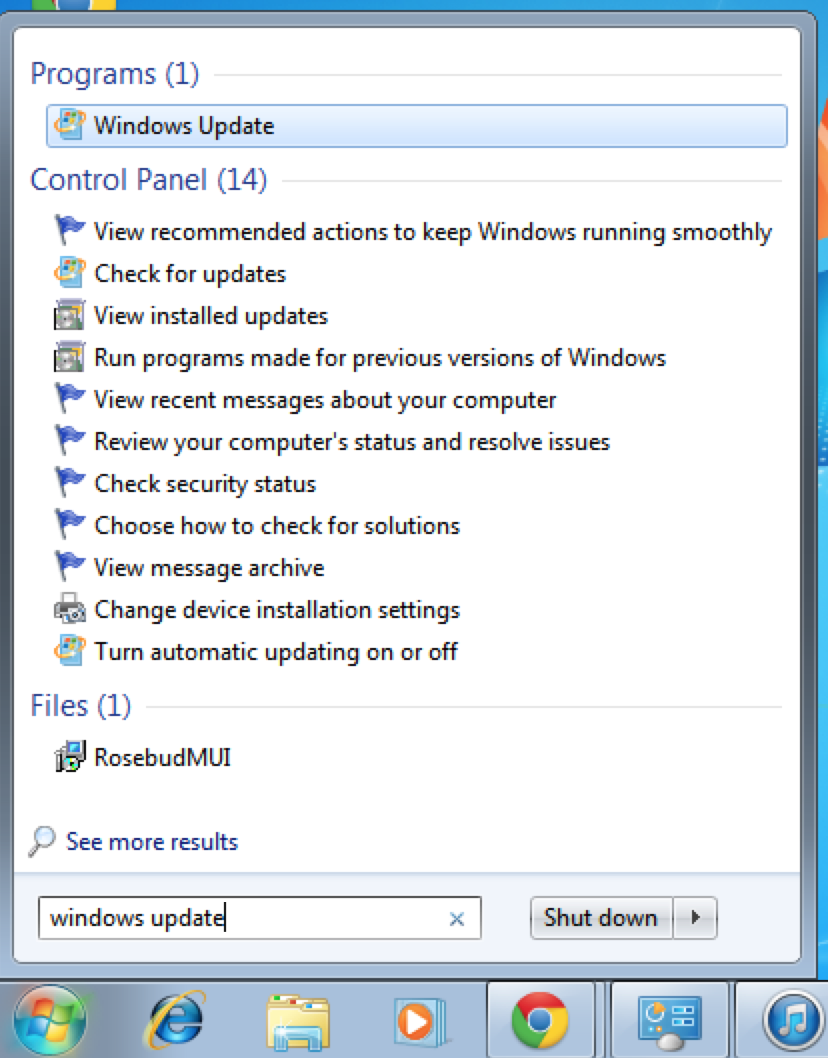
This is natural and good step to start tuning your Windows. If you missed service pack updates, that is going to affect your performance since it includes many performance updates. Check your updates, update everything you can, reboot and repeat this until Windows update doesn't have anything else to offer. Open up start menu and search for 'Windows Update'. Then just click 'Install updates'.

Search for 'Windows Update'
Keep installing updates, until Windows update doesn't have anything else to offer.

2. Delete unused applications, that you don't need anymore.

Be careful here, remove only applications that you recognize. There can be bunch of frameworks and drivers need to be there. But don't be scared, your system wont die if you accidentally deleted something that you shouldn't. Open 'Add or remove programs' select application from the list, press uninstall and follow the instructions after uninstaller starts.
Search for 'Add or remove programs'

3. Remove ALL start up applications. 

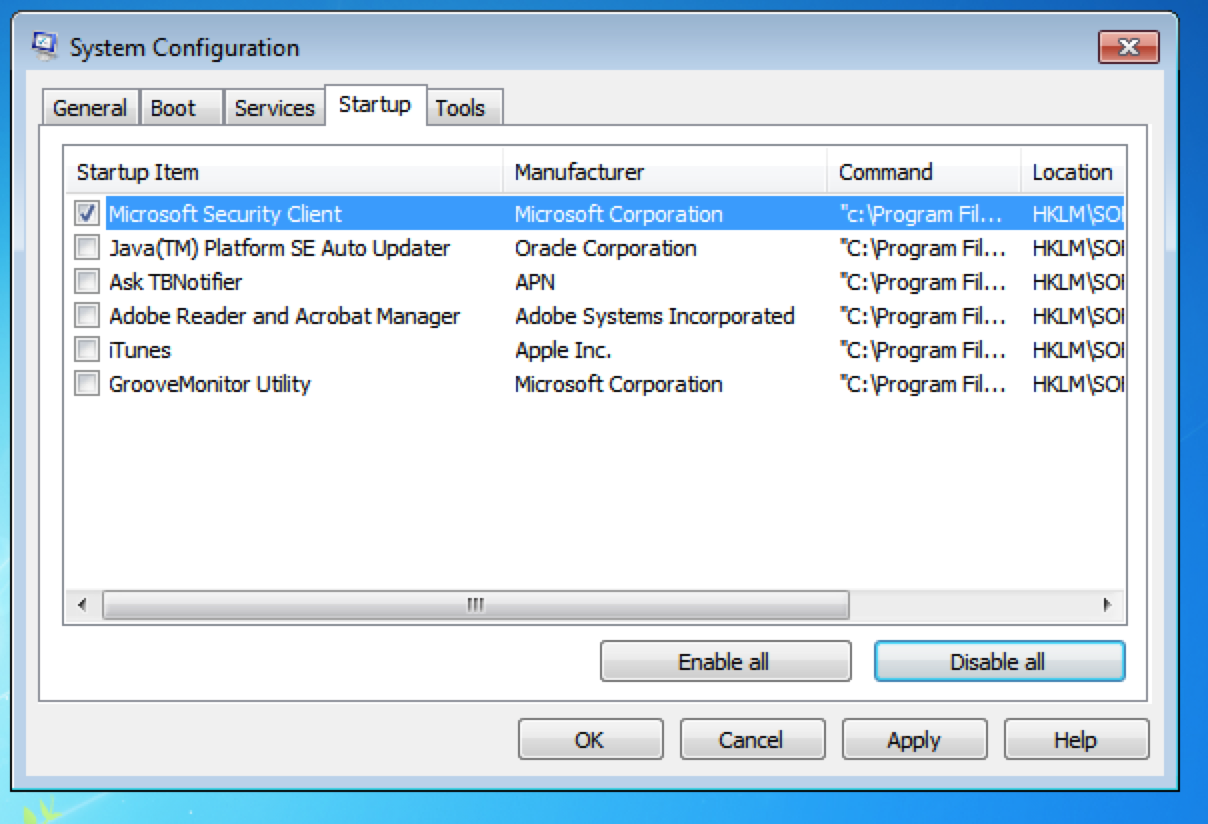
Yes, everything, unless you are certain that you need them. Its easier to come back and enable the applications than just leave them hanging around useless. Anti virus software is a good example which you could leave enabled. Open application called 'msconfig', select 'Startup' tab and start deselecting applications. After you are done, hit OK.

Search for 'msconfig'
Remove everything what you don't need.


4. Run CCleaner

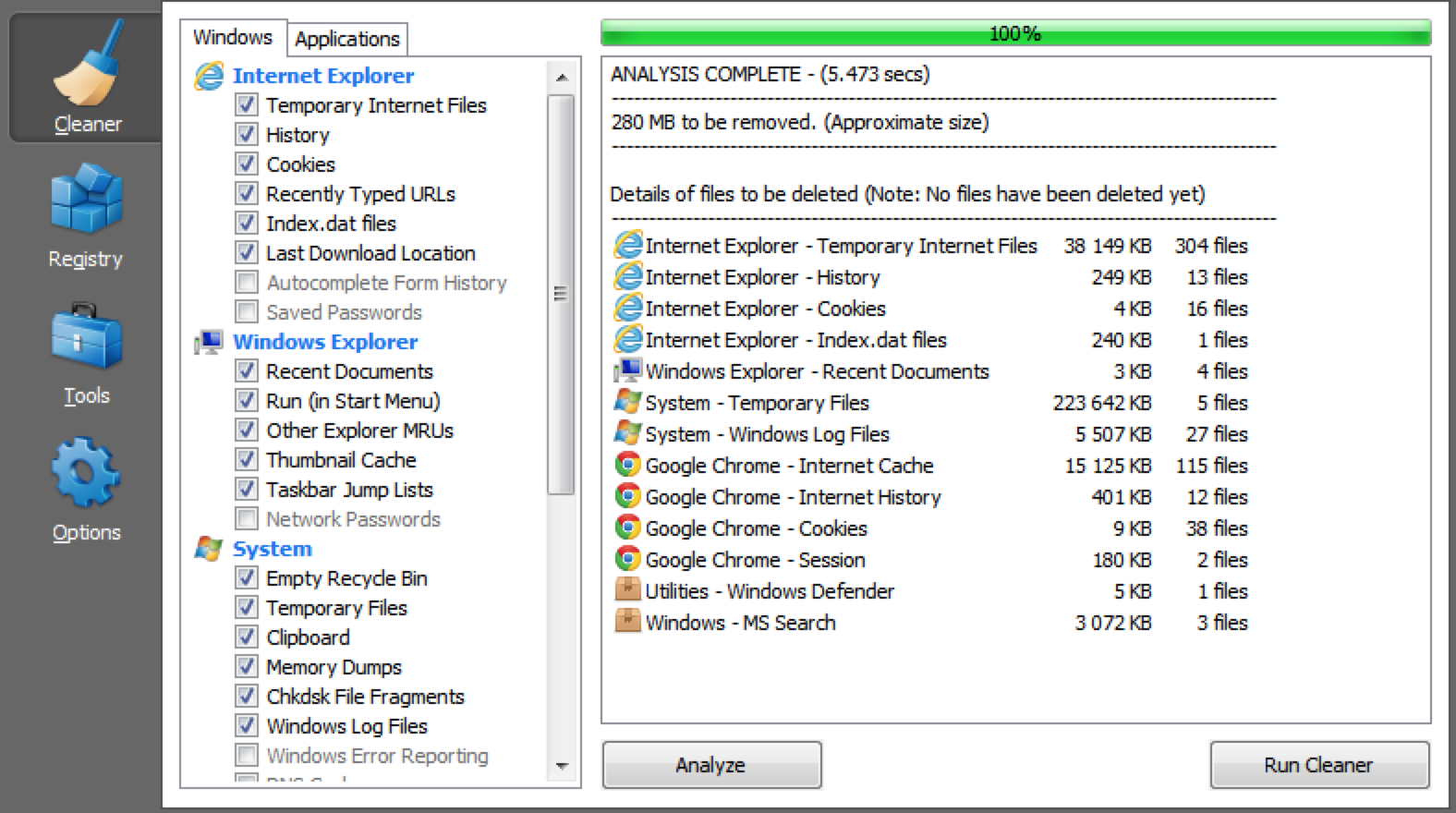
This handy piece of software will delete all of your temporary files with one click. You can also clean up your registry. Just hit 'Analyze' to see what CCleaner is about to do and after that click 'Run Cleaner'. You can repeat this step at 'Registry' tab.

Download latest version of CCleaner here:
http://www.piriform.com/ccleaner/download

CCleaner analyze

5. Reboot your system

Now on system startup should already start feeling less painful. Keep an eye out if something is missing, go back to 'msconfig' and re-enable applications if needed.

6. Defrag your system

You really don't have to (or actually shouldn't) do this if you are using SSD drive. SSD or Solid state drives wears out by doing intensive read/write operations (which defrag is doing). And since seek-time of SSD drive is 0ms its really needed anyway. If you are not sure, listen to your harddrive, if you hear it spinning and keeping noise, then its a standard hard drive, and you most probably should defrag it.

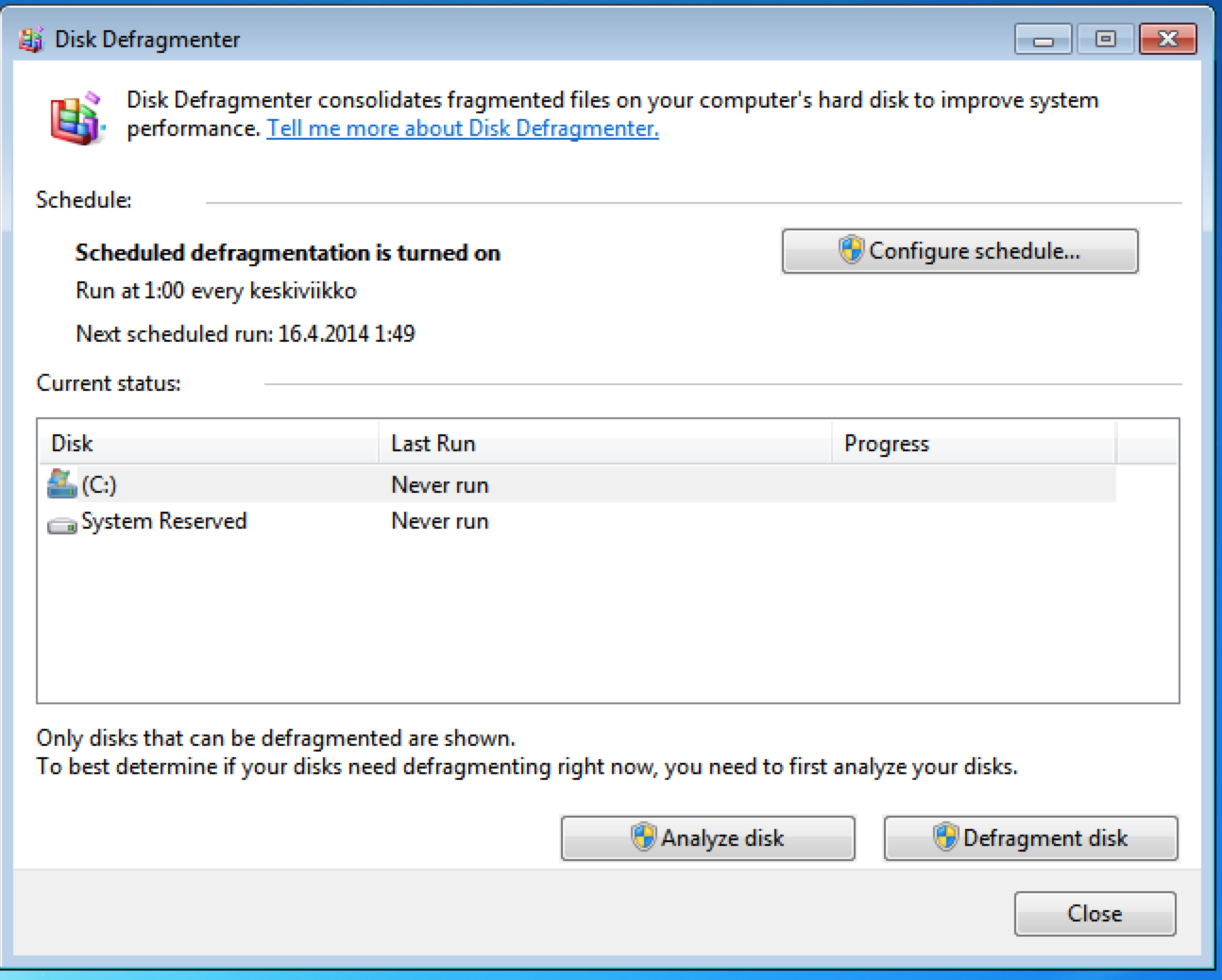
Open 'Disk Defragmenter', click Disk you want to defrag and hit 'Defragment disk'. This might take a while. Tts better to leave it running and not to do too much stuff with your computer during that time.

Search for 'Disk Defragmenter'
Select drive and click 'Defragment disk'


7. Clean your desktop

This might be an illusion, but seriously try it! Making your desktop clear from all the temporary documents and crap will make your computer appear to be running faster. Also change a shiny new background. If you don't know where to look for one, i recommend http://interfacelift.com/.
Before

After
Thats it, now your system should be bit faster again. Hopefully this was helpful.

2014/04/07

Saving screenshot to clipboard or desktop on Mac OS X

Here is few very handy shortcuts for taking screenshots in Mac OS X. Especially saving your region directly to clipboard can be a great time saver when working on a presentation or anything alike.

Cmd - Shift - 3
Capture screen and save it on desktop.

Cmd - Shift - Control - 3
Capture screen and save it on clipboard.

Cmd - Shift - 4
Capture region and save it on desktop.

Cmd - Control - Shift - 4
Capture region and save it on clipboard.

Saving screenshot (3) or region (4) to clipboard.

Taking screenshot on Samusung Galaxy S4

It wasn't too obivius so i had to search for it.

Classical way for taking screenshot in Samsung Galaxy S4 is to press:

power/lock screen button + home button at the same time for 1 second.

After this screenshot will be taken and saved into your gallery. You could also use Samusing motion sensor and swipe your hand across the screen. This has to be somehow enabled from the menus, but since i find this feature useless anyway, i didn't even bother to try it out.

2014/03/06

Enable password authentication for Google Compute Engine instance.

By default Compute Engine instance uses key pairs to authenticate you into your instance. This is very much recommended for security reasons. When you are first time connecting your instance through gcutil ssh, you will be asked to create a pass phrase for your ssh keys. Gcutil will create key pair in your local machine and copy it over to your project.

However if you want to authenticate ssh from outside world using password, here is a simple step what to do:

Edit file /etc/ssh/sshd_config

Find this line from your sshd_config and change it to PasswordAuthentication yes:
 # Change to no to disable tunnelled clear text passwords  
 PasswordAuthentication no  
Then just reload your OpenBSD Secure Shell server (Debian).
  sudo /etc/init.d/ssh reload  
In a CentOS init.d name is bit different, since it uses OpenSSH server.
 sudo /etc/init.d/sshd reload  
Of course also remember to add firewall rule for TCP port 22. This can be done through Developers Console.


2014/02/28

Add quick print button for Google Chrome

My friend was recently wondering that why doesn't chrome have quick print button. Back in the days i also got used to that quick print icon in Internet Explorer. And i do remember using it many times.

In chrome, normally you could print by opening Chrome settings tab from right hand side and select "Print...". Alternatively you can print by using keyboard shortcut Ctrl+P (Windows) or ⌘-P (mac).

Since my IE days are long gone, i would still like to have quick print icon in Google chrome. This is how you can get it.

Select "Customize and control Google chrome", from the top right corner next to the address bar.


Note that Show Bookmarks Bar must be enabled. Select Bookmarks -> Bookmark Manager.


While Bookmarks Bar selected, right click anywhere on the window right hand side and select "Add Page".


Left textbox is the name of the bookmark, i made it "Print". Right side is the bookmark URL, we are going to place small javascript to it: javascript:window.print(). Then hit enter and you are done.

Now you should have nice small quick print icon on your bookmarks bar. I wonder if you could actually have cool printer icon on it as well. Need to research that later.


2014/02/26

Linux: Bash single line for loop examples

Knowing for loop in bash is definitely one of the most powerful tricks. For instance, it makes processing and reading files quick and painless in most cases. Since there can be countless use cases for this, i will write down some basic use scenarios.

Here is few basic examples that could be useful.

Creating files:

 for i in 1 2 3 4;do touch file"$i";done  
 ls -l  
 -rw-r--r-- 1 m 5000 0 Feb 26 21:31 file1  
 -rw-r--r-- 1 m 5000 0 Feb 26 21:31 file2  
 -rw-r--r-- 1 m 5000 0 Feb 26 21:31 file3  
 -rw-r--r-- 1 m 5000 0 Feb 26 21:31 file4  

Renaming all files within directory:

 ls -l  
 -rw-r--r-- 1 m 5000 0 Feb 26 21:18 pic01.JPG  
 -rw-r--r-- 1 m 5000 0 Feb 26 21:18 pic02.JPG  
 -rw-r--r-- 1 m 5000 0 Feb 26 21:18 pic03.JPG  
 -rw-r--r-- 1 m 5000 0 Feb 26 21:18 pic04.JPG  
 -rw-r--r-- 1 m 5000 0 Feb 26 21:18 pic05.JPG  
 -rw-r--r-- 1 m 5000 0 Feb 26 21:18 pic06.JPG  
 -rw-r--r-- 1 m 5000 0 Feb 26 21:18 pic07.JPG  
 -rw-r--r-- 1 m 5000 0 Feb 26 21:18 pic08.JPG  
 -rw-r--r-- 1 m 5000 0 Feb 26 21:18 pic09.JPG  
 -rw-r--r-- 1 m 5000 0 Feb 26 21:18 pic10.JPG  
 -rw-r--r-- 1 m 5000 0 Feb 26 21:18 pic11.JPG  
 -rw-r--r-- 1 m 5000 0 Feb 26 21:18 pic12.JPG  
 -rw-r--r-- 1 m 5000 0 Feb 26 21:18 pic13.JPG  
 -rw-r--r-- 1 m 5000 0 Feb 26 21:18 pic14.JPG  
 -rw-r--r-- 1 m 5000 0 Feb 26 21:18 pic15.JPG  
 -rw-r--r-- 1 m 5000 0 Feb 26 21:18 pic16.JPG  
 -rw-r--r-- 1 m 5000 0 Feb 26 21:18 pic17.JPG  
 -rw-r--r-- 1 m 5000 0 Feb 26 21:18 pic18.JPG  
 -rw-r--r-- 1 m 5000 0 Feb 26 21:18 pic19.JPG  
 -rw-r--r-- 1 m 5000 0 Feb 26 21:18 pic20.JPG  

I want to change rename these pictures as picture_01, picture_02 and so on. I could do this:

 for i in *;do mv $i $(echo $i | sed "s/pic/picture_/");done  
 ls -l  
 total 0  
 -rw-r--r-- 1 m 5000 0 Feb 26 21:18 picture_01.JPG  
 -rw-r--r-- 1 m 5000 0 Feb 26 21:18 picture_02.JPG  
 -rw-r--r-- 1 m 5000 0 Feb 26 21:18 picture_03.JPG  
 -rw-r--r-- 1 m 5000 0 Feb 26 21:18 picture_04.JPG  
 -rw-r--r-- 1 m 5000 0 Feb 26 21:18 picture_05.JPG  
 -rw-r--r-- 1 m 5000 0 Feb 26 21:18 picture_06.JPG  
 -rw-r--r-- 1 m 5000 0 Feb 26 21:18 picture_07.JPG  
 -rw-r--r-- 1 m 5000 0 Feb 26 21:18 picture_08.JPG  
 -rw-r--r-- 1 m 5000 0 Feb 26 21:18 picture_09.JPG  
 -rw-r--r-- 1 m 5000 0 Feb 26 21:18 picture_10.JPG  
 -rw-r--r-- 1 m 5000 0 Feb 26 21:18 picture_11.JPG  
 -rw-r--r-- 1 m 5000 0 Feb 26 21:18 picture_12.JPG  
 -rw-r--r-- 1 m 5000 0 Feb 26 21:18 picture_13.JPG  
 -rw-r--r-- 1 m 5000 0 Feb 26 21:18 picture_14.JPG  
 -rw-r--r-- 1 m 5000 0 Feb 26 21:18 picture_15.JPG  
 -rw-r--r-- 1 m 5000 0 Feb 26 21:18 picture_16.JPG  
 -rw-r--r-- 1 m 5000 0 Feb 26 21:18 picture_17.JPG  
 -rw-r--r-- 1 m 5000 0 Feb 26 21:18 picture_18.JPG  
 -rw-r--r-- 1 m 5000 0 Feb 26 21:18 picture_19.JPG  
 -rw-r--r-- 1 m 5000 0 Feb 26 21:18 picture_20.JPG  

* wildcard in this bash loop (for i in *) refers to all files within current working directory. That's why this for loop will catch all files.

Jinja2 template engine, simple basics.

Template engines will allow you to keep your HTML code outside of your code base. Managing and generating HTML in code is a bad practise. Templates will also give nice boost for performance and give you more secure system. this naturally depends how you are using your templates.

This is what Jinja2 is hyping in their features list:


  • Sandboxed execution
  • Powerful automatic HTML escaping system for XSS prevention
  • Template inheritance
  • Compiles down to the optimal python code just in time
  • Optional ahead of time template compilation
  • Easy to debug. Line numbers of exceptions directly point to the correct line in the template.
  • Configurable syntax

  • I was surprised to see how flexible Jinja2 for instance is. Variables can be modifier by filters you can see the full list of built in filters from here: http://jinja.pocoo.org/docs/templates/#builtin-filters

    Here is some basics, which are usually enough to get going.

    I'm passing this test data to Jinja2 (I'm using Python):

     template_data = {"page_title": "Testing templating",  
                      "page_text": "This is my Jinja2 rendered web page!",  
                      "loop_data": ["item1", "item2", "item3"]}  
    

    Data is in dict format. It consists title, text and some data for demonstrating looping. Loop data is placed inside a list.

    This is my template file:

     <html>  
     <head>  
     <title>{{ page_title }}</title>  
     </head>  
     <body>  
     <h1>{{ page_text }}</h1>  
     Loop data:  
     {% for row in loop_data %}  
      {% if row == "item2" %}  
       <font color="red">{{ row }}</font>  
      {% else %}  
       {{ row }}  
      {% endif %}}  
     {% endfor %}  
     </body>  
     </html>  
    

    Variables are referred with {{ var_name }}.

    For loop works like in any other programming language. Just loop list named loop_data and represent its data with variable row in the loop.

    There is also a example how simple IF works. Basically when row value hits "item2" in the loop, font color should be in red. You can also specify {% elif %} blocks.


    2013/05/11

    Python subprocess Popen Stdout and Stderr

    Python's cool subprocess module allows you to launch new processes and make stuff happen for you. You can easily catch Stdout and Stderr from these processes and do post processing as you like.

    You can redirect stdout and stderr into buffer by specifying stdout=subprocess.PIPE, stderr=subprocess.PIPE arguments into Popen. You can also ignore them be setting values to None. By default you are receiving Stdout and Stderr output normally.

    Python documentation states that you should not use PIPE with Popen since it can fill up OS Buffer, if your Stdout generates enough output. However this can be prevented by communicating with your process regularly by using communicate().

    In my script, I'm waiting for suprocess to complete in a while loop, I'm polling the status of the process and then communicating to get stdout and stderr from the OS pipe buffer. Its also wise to sleep during the while loop to save overhead on CPU :-)

    Here is a small script to demonstrate this:

     import subprocess
     import time
    
     # Bash command that will be executed
     cmd = "sudo apt-get upgrade"  
    
     # Launch subprocess  
     print "Launching command: " + cmd  
     sp = subprocess.Popen(cmd, shell=True, stdout=subprocess.PIPE, stderr=subprocess.PIPE)  
     sp_data = []  
     # Wait for process to finish  
     while sp.returncode is None:  
      print "Polling.."  
      sp.poll()  
      sp_data = sp.communicate()  
      time.sleep(1)  
     # Print results  
     print "Finished, returncode: " + str(sp.returncode)  
     print "Stdout:"  
     print "------------------------"  
     print str(sp_data[0])  
     print "Stderr:"  
     print "------------------------"  
     print str(sp_data[1])  
    

    Output from this command is following:
     Launching command: sudo apt-get upgrade  
     Polling..  
     Finished, returncode: 0  
     Stdout:  
     ------------------------  
     Reading package lists...  
     Building dependency tree...  
     Reading state information...  
     0 upgraded, 0 newly installed, 0 to remove and 0 not upgraded.  
     Stderr:  
     ------------------------  
    

    To test that Stderr is also working, lets try to execute same command without sudo:
     Launching command: apt-get upgrade  
     Polling..  
     Finished, returncode: 100  
     Stdout:  
     ------------------------  
     Stderr:  
     ------------------------  
     E: Could not open lock file /var/lib/dpkg/lock - open (13: Permission denied)  
     E: Unable to lock the administration directory (/var/lib/dpkg/), are you root?  
    

    You might also want to look at my previous post about Popen, how to spawn parallel processes:
    Experimenting with Python subprocess Popen

    Install webmin on Ubuntu server (12.04 LTS)

    Webmin is powerful web-based application for administering your Unix based or Windows system. With webmin, you can modify basic configuration of your server, manage cron jobs, execute commands etc.

    Webmin is modular, which makes it very flexible. You can see list of standard modules of latest version from this link:
    http://www.webmin.com/standard.html

    First up, you should look up most recent version of webmin, you can check latest version from here:
    http://freefr.dl.sourceforge.net/project/webadmin/webmin/

    Download package with wget:
     wget http://freefr.dl.sourceforge.net/project/webadmin/webmin/1.620/webmin_1.620_all.deb  
    

    Webmin is going to need some dependencies in order to install, handy way to install all required packages is to use tool called gdebi. Run gdebi as sudo against your deb packet to install all dependencies.

    First you need to install packet gdebi-core:
     sudo apt-get install gdebi-core  

    Then you can run it against your .deb pakcage:
     sudo gdebi webmin_1.620_all.deb  
     Requires the installation of the following packages:  
     apt-show-versions libapt-pkg-perl libauthen-pam-perl libio-pty-perl libnet-ssleay-perl  
     web-based administration interface for Unix systems  
      Using Webmin you can configure DNS, Samba, NFS, local/remote filesystems  
      and more using your web browser. After installation, enter the URL  
      https://localhost:10000/ into your browser and login as root with your root  
      password.  
     Do you want to install the software package? [y/N]:y  
    

    Now everything should be set up and we can proceed with webmin install:

     sudo dpkg -i webmin_1.620_all.deb  
     ...  
     Webmin install complete. You can now login to https://ip-192-168-1-1:10000/  
     as root with your root password, or as any user who can use sudo  
     to run commands as root.  

    Now everything should be set! You can start configuring your server from https://<your server>:10000/

    2013/05/09

    Grep running process

    If you need script to see if specified process is running, its easy to grep it from ps aux.

     m@box:~$ ps aux | grep mysqld  
     mysql   1090 0.0 3.1 322660 48892 ?    Ssl 19:53  0:00 /usr/sbin/mysqld  
     m       1903 0.0 0.0  4384  808 pts/0  S+  20:29  0:00 grep --color=auto mysqld  
    

    Problem here is that you can see your grep process which has your process as parameter. Script that relays on exit code ends up always being successful since grep process is on the list. You can easily fix this problem by adding additional pipe trough grep with -v grep parameter.

    -v option is also --invert-match

     ps aux | grep mysqld | grep -v grep 1>/dev/null&& echo Process is runing || echo Process is not running  
    

    Its a lot easier to do this by using pgrep.

    pgrep scans running processes and returns process pid into your stdout.

     m@box:~$ pgrep mysqld 1>/dev/null&& echo Process is runing || echo Process is not running  
     Process is runing  

    2013/01/20

    CIDR and VLSM

    For a while it was very hard for me to understand what exactly is the difference between CIDR and VLSM. And since it took time to figure it out, i decided to post about it in a way how i would understand it myself.

    Classless Inter-Domain Routing is a method to allocate IP addresses into multiple logical networks. You may know CIDR for its notation, for example 192.168.0.0 with mask 255.255.255.0 would be notated as 192.168.0.0/24.

    CIDR has a 33 blocks of subnets, ranging from 0 to 32. Which makes subnetting a lot more efficient than classful subnetting. CIDR doesn't cover all possible subnet masks. Check the CIDR block table from wikipedia page

    What if i want to use subnet mask of 255.255.255.253, which doesn't have CIDR notation ?

    This is still indeed a valid subnet mask, but using it is discouraged. There might be incompatibility with some routing hardware depending how they are parsing their bits. In CIDR bits are expected to be 1's from left to right.

    Where does the /24 come from ?

    24 presents the amount of "turned on" bits in subnet mask's binary format. IPv4 address is a 32bit, so every octet in the IP address has 8 bit's. Every bit in octet has a value which you can either turn on or off.

    1286432168421
    11111111

    If every bit is turned on, result would be 255

    Consider this IPv4 addreess:

    11000000 10100000 00001010 01100101

    First octet: 11000000: 128 + 64 = 192
    Second octet: 10100000: 128 + 32 = 168
    Third octet: 00001010: 8 + 2 = 10
    Fourth octet: 01100101: 64 + 32 + 4 + 1 = 100

    Subnet mask 255.255.255.0 in binary would look like this:

    11111111 11111111 11111111 00000000

    It has 24 "turned on" bits and 8 "turned off" bits, so thats /24

    255.255.255.255.192 in the other hand would look like this:

    11111111 11111111 11111111 1100000

    It has 26 one's and 6 zeroes, so this would be notated as /26

    Then what is VLSM ?

    VLSM stand for Variable Lenght Subnetmask. Name kind of gives it away, so for example: instead of splitting your 192.168.0.0/24 network into 4 same size pieces, you can split it into multiple variable sized networks.

    So if i would want to hack 192.168.0.0/24 into 4 pieces it would look like this:

    Network A: 192.168.0.0/26 (64 hosts)
    Network B: 192.168.0.64/26 (64 hosts)
    Network C: 192.168.0.128/26 (64 hosts)
    Network D: 192.168.0.192/26 (64 hosts)

    So now all networks can have total of 64 hosts (minus network and broadcast).

    But what if my network A would have demand for more hosts, and 192.168.0.0/24 would be the only IP block that we can spare to allocate ?

    Let's pretend that B and C networks would need only half of the currently allocated IP's. So instead of 64 hosts they would have 32 hosts. We could mask these networks with 255.255.255.224 which is equivalent to /27, and has 32 hosts. And now we have 64 IP's unallocated which we can lend to network A!

    Using VLSM, we split the network more logically to serve all network better for their needs, our new networks would look like this:

    Network A: 192.168.0.0/25 (128 hosts)
    Network B: 192.168.0.128/27 (32 hosts)
    Network C: 192.168.0.160/27 (32 hosts)
    Network D: 192.168.0.192/26 (64 hosts)
    2012/12/31

    RIP version 1 Vs RIP version 2

    RIP = Routing Information Protocol

    RIP was first introduced in 1988 in RFC 1058 and was developed for exchanging routing information among gateways and other hosts. By the time RIP served it purpose well when networks were small and didn't require complex subnet allocations.

    While RIPv1 is still widle used, in modern networks RIPv1 has been replaced with enchaned RIPv2. RIPv2 was developed 1993 and standardized 1998. It was developed to make RIP more effecient and secure.

    How RIP works

    Basic function of RIP is to send periodic updates every 30 seconds. In this update, routers will exchange their routing tables, so they can keep track how to reach different networks. They will update even when there is no changes in the routing tables.

    Originally RIPv1 sent these updates trough broadcast address of 255.255.255.255. RIPv2 protocol uses 224.0.0.9 which is a multicast address, greatly saving bandwidth and increasing performance of updates.

    Fastest path will be decided with Hop Count (Hops between subnets). Hop Count is limited to 15 so everything above 16 hops is considered unreachable. This way infinite loops cannot happens in RIP network.

    RIPv1 Vs RIPv2


    RIPv1 vs RIPv2
    Classful vs Classless

    RIPv1 used classful routing, it means that RIPv1 couldn't send subnet information in its periodic updates.

    Classful routing protocol will look up the first octet of your IP address and determinate which class it belongs to.

    For instance if your IP address belongs to Class B, it has a default subnet of  /16 (255.255.0.0). If your network would be 172.10.10.0/24, Classful routing protocol would see only 172.10.0.0/16 and ignore your /24 network.

    RIPv2 is a Classless routing protocol and now routers can have subnet masks in their routing tables. Enabling you to have any kind of network and RIP doesn't have to rely on the class of the IP address anymore!

    Broadcast updates has been replaced with multicast

    Since broadcasting routing tables to every host in your network creates a lot of overhead. RIPv2 multicasts updates are only received by those who are interested about them. Which is a lot more efficient.

    Lack of authentication creates security vulnerabilities

    Since RIPv1 doesn't support authentication. Any device can send updates to your routers. If malicious device enters your network, it could advertise any networks to neighbouring routers and they would trust it fully.

    RIPv2 can exchange passwords with MD5 encryption.

    Lack of VLSM made IP addressing inefficient

    RIPv2 can send subnetmasks in its periodic updates, which allows RIP to handle any size of subnets. This made IP addressing a lot more efficient since you can allocate smaller blocks of IP addresses for networks that didn't have many hosts.

    2012/12/30

    Inodes in Linux

    What is a inode, Why we need them ?

    Have you ever wondered where is your access permissions located? How does your system know that you are the owner of your home folder? Is it written on the file itself ?

    Answer to your questions is the Inodes also known as Index nodes.

    Inode is a data structure, inodes stores all data about the file objects, except data content and file name. Unix doesn’t use the file name to refer to the file, it uses the inodes and inodes are pointing to actual block addresses where the data is located. inodes reside in Inode table (see Ext4 Disk Layout)

    Windows (NTFS) equivalent is Master file table
    Max OSX (HFS) equivalent is Catalog File

    POSIX standard description for inode is:


    • File size in bytes
    • Owner and Group of the file
    • Device ID (device where file is contained)
    • file mode (access permissions)
    • Timestamps (Content last modified (mtime), Inode last modified(ctime) and Last accessed (atime))
    • Link count (how many hard links point to the inode)
    • Pointers to actual disk blocks that are containing the data
    • Additional system and user flags (limit its use and modification)


    Unix or Linux systems doesn't usually store creation date, but ext4 has an attribute for creation date.

    crtime (Create time) and also a dtime (Delete time)

    inodes allows us to do linking and gives us significant performance increase, because inodes points us to the right data block when we are querying for files.

    You can run out of inodes, what happens then ?

    inode limit is decided at file system creation time. Its not a fixed value. You can check your current inodes usage with df -i


     Filesystem      Inodes  IUsed  IFree IUse% Mounted on  
     /dev/sda1      14983168  95016 14888152  1% /  
    

    If you happen to run out of Inodes before you run out of disk space, you simply cannot create any more files or directories that consume Inodes, your things start to get very messy and unstable :)

    stat command

    stat displays file or file system status.

    You can query file or file system with stat, for example for file:

     m@srv:~/symlink_test$ stat file1  
      File: `file1'  
      Size: 65         Blocks: 8     IO Block: 4096  regular file  
     Device: 801h/2049d     Inode: 5506851   Links: 1  
     Access: (0644/-rw-r--r--) Uid: ( 1000/  m)  Gid: ( 1000/  m)  
     Access: 2012-12-30 14:38:23.983590932 +0200  
     Modify: 2012-12-30 14:38:49.112092037 +0200  
     Change: 2012-12-30 14:38:49.112092037 +0200  
    

    and for file system (use -f flag)

     m@srv:~/symlink_test$ stat -f /dev/sda1  
      File: "/dev/sda1"  
       ID: 0    Namelen: 255   Type: tmpfs  
     Block size: 4096    Fundamental block size: 4096  
     Blocks: Total: 191863   Free: 191821   Available: 191821  
     Inodes: Total: 191863   Free: 191262  


    Inode data pointers, direct blocks and indirect blocks

    One inode can point only to 12 blocks of data.

    So if your block size is 4096, that would mean 12x4096 = 49152 bytes (48kb). This limitation would suck so that's why inode also has 3 indirect block pointers.

    Indirect block pointer points to a block of block pointers, which.. again can point to indirect blocks that will point to new set of block pointers! This allows us to have very large files in our file system.

    I tried to illustrate this with a picture but i ended up with a big messy pile of lines. Please check the wikipedia page for more info.


    2012/12/29

    Linux Symbolic links: Soft and Hard links

    What is a symbolic link? Why its important ?

    Symlink (Symbolic link) is a reference to another file or directory. It allows you to point multiple file names to single inode that points to a physical block address on the disk.

    Symlink's  are mostly used as a shortcut's, they can make your life a lot easier by making your directories of data available for you where you want it.

    How do i make a symlink ?

    Use the following option in ln command:

     -s, --symbolic
                  make symbolic links instead of hard links

    For example:

     ln -s file1 file1_symlink  
     ls -l
     -rw-r--r-- 1 m m 0 2012-12-29 14:57 file1  
     lrwxrwxrwx 1 m m 5 2012-12-29 14:58 file1_symlink -> file1  


    How do i make a hard link ?


     ln file1 file1_hardlink  
     ls -l  
     -rw-r--r-- 2 m m 0 2012-12-29 15:03 file1  
     -rw-r--r-- 2 m m 0 2012-12-29 15:03 file1_hardlink  
    

    What is the difference between soft and hard link ?

    Most important difference between hard and soft is that soft link depends on the original file.

    For example, if i create a soft link and delete the original file that i linked, i cannot access my file trough symlink anymore and it becomes broken link.

     m@srv:~/symlink_test$ cat file1_symlink   
     Hello World!  
     m@srv:~/symlink_test$ rm file1  
     m@srv:~/symlink_test$ cat file1_symlink   
     cat: file1_symlink: No such file or directory  
    

    But in the case of hard link, my file is always accessible if there is one hardlink existing of the file

     m@srv:~/symlink_test$ cat original  
     Hello World!  
     m@srv:~/symlink_test$ ln original hard_linked  
     m@srv:~/symlink_test$ cat original hard_linked   
     Hello World!  
     Hello World!  
     m@srv:~/symlink_test$ rm original   
     m@srv:~/symlink_test$ cat hard_linked   
     Hello World!  
    

    Also hard links do not link paths on different volumes or file systems, soft links do. Soft links also consume inodes but hard links always shares the same inode.

    Where is the symbolic link stored ?

    Symlinks are just references to a physical location of a file, if you make symlinks, its doesn't meant that you are losing disk space by creating a copies. Symbolic links are stored in the same place as inodes, inodes are the place where disks resides its block addresses. 

    2012/10/30

    App Engine Templates and CSS with Python

    HTML is much easier to maintain in App Engine if you use templates. Templates are way of storing you HTML code, it also has syntax to show your application data where you want it to be.

    Django's templating engine is included in webapp2 framework.

    Here is a sample code how to render html template:

     import webapp2  
     from google.appengine.ext.webapp import template  
     class index(webapp2.RequestHandler):  
      def get(self):  
       self.response.out.write(template.render('index.html', {}))  
     app = webapp2.WSGIApplication([('/', index)])  
    

    Just remember to store your html file in the same folder.

    Then you probably want to add CSS to your project? Create folder called css (or whatever you want to call it) and add it as a static directory to your app.yaml:

    This will map your "physical" css directory into <project url>/css url.

     - url: /css  
      static_dir: css  
    

    Create your style.css file and refer it in index.html and you are done!

     <link href="css/styles.css" rel="stylesheet" type="text/css">  


    2012/10/01

    Add Workspaces to Windows using VirtualWin

    There is definitely one very important function missing in Windows and that is Workspaces.

    Workspaces are "virtual desktops" that you can switch on fly. For instance Workspace 1 can have your browser open, Workspace 2 your applications and Workspace 3 your music player and so on. This makes managing multiple windows alot more simpler and faster.


    It didn't take long googling to find this desktop manager called "VirtualWin". VirtualWin is a free software licensed under the GNU General Public License. It works on many Windows operating systems (Win9x/ME/NT/Win2K/XP/Win2003/Vista/Win7)

    It looked interesting and i wanted to give it a go.

    Setting up application was easy, no need to configure anything if you want to go with default settings. By default VirtualWin has 2x2 workspaces that can be changed to whatever you want in Setup screen. You can bind your own hotkeys for swapping workspaces, default is Control-Alt-Arrows combination, same as in Ubuntu for example!

    For me windows was hiding application icon that tells my current Workspace, so i had to change icon behaviour.

    Control Panel\All Control Panel Items\Notification Area Icons


    Moving windows between workspaces works with Alt-Windows-Right/Left, it feels bit weird since it moves you with the window to next workspace, this can be also changed by changing the bind command from "WIN: Move to next desktop and follow" to "WIN: Move to next desktop".

    What a great piece of software, i can only wish that i would have discovered this earlier!

    VirtualWin project page


    Amazon EC2: Getting started (Part 2/2)

    Back to Amazon EC2: Getting started (Part 1/2)

    Now our instance is launching, view your instance by selecting "instances" from left navigation bar


    My instance is now running but its still Initializing, so we have to wait until instance is fully launched, this will take couple of minutes. Once "Initializing" will be replaced with something like 2/2 checks passed, instance is ready for use.

    Next select your instance and properties windows will be populated with information about your instance. We need public DNS address in order to connect our instance. Private DNS address is used for internal communication of your instances.


    Connecting to your server using PuTTY

    First you must generate .ppk file from your private key .pem file. Windows users can follow this guide and Linux users this.

    Copy paste your Public DNS or IP address to "Host name". Then browse to

    Connection -> SSH -> Auth and Browse for your .ppk file and click Open.


    Since you are probably connecting your server for the first time PuTTY will alert you that this host key is not yet in system cache. You can ignore this and press Yes.

    In ubuntu server, default login name is ubuntu.


    Now we are logged in! Have fun!

    If you want to setup LAMP server to your instance. Check out this:

    Setting up LAMP in Ubuntu server

    Amazon EC2: Getting started (Part 1/2)

    EC2 = Amazon Elastic Compute Cloud

    In this post we will create EC2 Micro instance.

    For now Amazon EC2 has been my weapon of choice for testing out stuff. Instances are easy to launch and if you run it for couple of hours its basically free.

    This is very simple guide that runs trough the process of creating a virtual machine in Amazon infrastructure.

    I'm not going to cover signing up part, but its easy to do just follow the instructions. You need a valid credit card in order to register.

    If you are registering first time to AWS, you will be eligible for Amazon's free tier!

    Yes! Free micro instance for 12-months, the performance is not going to rock your world buts its alright to run small website on it. More information about free-tier here

    http://aws.amazon.com/ec2/

    Once you get your account done you can log into your AWS Console. As you can see EC2 is only one part Amazon Web Services, we are not covering any other services than EC2 now.


    Click EC2 to proceed.

    Next up its importat to choose correct region in upper left navigation bar. If you are setting up your instance for your personal testing use, its good to choose region nearest to you.


    Once the region is selected hit "Launch Instance" button in the middle of the screen.


    You can either use classical wizard or quick launch, both do the same but in our case Quick launch is quicker (duh) and correct image seem to be at the first page (Ubuntu Server 12.04.1 LTS)

    Next set the name for your instance and set the name for your Key Pair. You must also download your key from the Download button next to Name field.

    Key Pair? Yes, Amazon provides public/private key pairs, public key goes into your virtual machine and you will be using private key. These keys must match in order to establish a connection to your server.

    You can only download this file once while creating the key pair so don't loose it! So I'm going to choose 64-bit Ubuntu server, you can use whatever you want.


    Then we review our instance, we have Type t1.micro it is a Micro instance, it has 613 MB of memory poor I/O performance. But for testing purposes it will do fine. Personally at this point i would rename security group since it cannot be renamed afterwards.


    You can create your custom security group if you click "Edit details". Check " Create new Security Group", name it and set some kind of description for it. From the "Create a new rule" Dropdown you select predefined groups, choose what you need and click "Add Rule". Here you could restrict from what source IP addresses can access your service, default 0.0.0.0/0 means everyone. 

    After you are finished, click Create


    Click Save details, then you will return to review windows and click Launch.

    Continue to part 2


    Generate .ppk out of .pem with Linux (Ubuntu)

    Here is a example how to convert .pem to .ppk using Ubuntu.

    First you need to install package putty-tools
     sudo apt-get install putty-tools  
    

    After install, all you really need to do is this:
     puttygen key.pem -o key.ppk  
    

    But.. with -P switch you can set passphrase for extra security, this is recommended and easy to do:
     puttygen key.pem -o key.ppk -P -C "My server key"  
    

    It is also recommended to set comment for your key using -C switch, because this string will be prompted to you when you are entering your passphrase.


    Note that you can also change passphrase afterwards by using -P switch

     m@box:~/Downloads$ puttygen -P key.ppk   
     Enter passphrase to load key:   
     Enter passphrase to save key:   
     Re-enter passphrase to verify:   
    

    And you are done!


    2012/09/24

    Setting up LAMP in Ubuntu Server

    This guide will take you trough process of installing fully functional LAMP server in Ubuntu. You can setup this easily in few minutes.

     sudo apt-get update  
     sudo tasksel  


    Move to LAMP server and check it by pressing space, then click TAB to move to Ok and press Enter.

    tasksell will download and install all necessary packets for you. Next you must enter MySQL root password and confirm it.


    Once install is completed, verify it by connecting to http://<your public dns or ip>/

    You should see this:


    Yup! it works, now we will set up phpmyadmin for administrating MySQL

     sudo apt-get install phpmyadmin  


    Setup will automatically configure phpmyadmin for you.

    Select "apache2" from the list by pressing space

    Configure database for phpmyadmin with dbconfig-common? -> Yes

    Here you must enter your MySQL root password. The one you entered earlier!

    Enter password for application password for phpmyadmin

    This is password for user "phpmyadmin" that will be used for communication between MySQL Server and phpmyadmin.

    And we are set again, verify installation by visiting http://<your public dns or ip>/phpmyadmin

    You can log in using "root" and your MySQL root password or with "phpmyadmin" and application specific password.